
The best screen magnifier
for Windows users
with low vision
A smooth, simple zooming utility designed to help your eyes track

- 7 day free trial
- $9.99 one-time
- No subscription
- No account
- No ads
- No data collected
- Works offline
Watch Low Vision Zoom in action
One key and your mouse wheel. That’s the whole interface.
It works the moment you install it with nothing to configure.
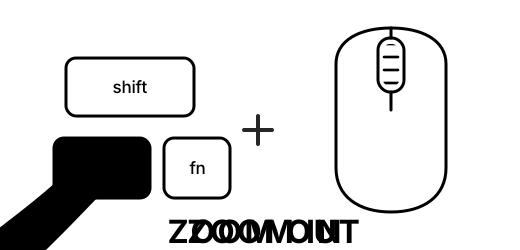
Hold Ctrl and scroll — forward zooms in, backward zooms out.
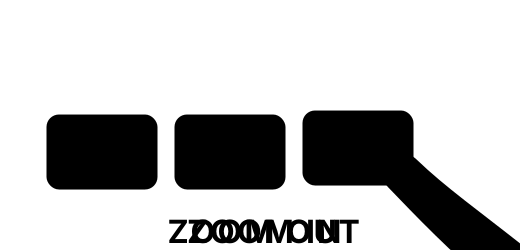
Hold Ctrl + Alt and press + or − — no mouse wheel needed.
Zoom in — magnify smoothly toward your cursor.
Zoom out — ease back out with the same gentle motion.
Zoom from the keyboard — hold to keep zooming. No mouse wheel needed.
Reset — snap instantly to normal (1×) when you need it.
Reset — snap instantly back to normal (1×).
Pan — move toward a screen edge and the view glides to follow.
Pan — move toward a screen edge and the view glides to follow.
Why it’s better: it never makes you re-find your place.
Most magnifiers move in sudden jumps, and every jump forces your eyes to stop and hunt for where they were. Low Vision Zoom moves smoothly and continuously.
Motion your eyes can ride
When a magnifier snaps, your eyes have to leap after it and re-find what they were reading. Here, every change is animated at 60 frames per second, so your eyes glide along with it instead of chasing it.
Your anchor never moves
The zoom pivots around the exact point under your cursor. That point stays fixed while everything grows around it. You choose your anchor simply by pointing at what matters.
One scene, not a new screen
Each frame is a small step from the last, so the view reads as the same page smoothly growing, never a new screen replacing the old one. Nothing vanishes, so there’s nothing to re-find.
You set the pace
Zoom is proportional: exactly as far and as fast as you scroll, and you can stop or reverse mid-motion. Motion you start yourself is motion your eyes can predict.
Still while you read
The view holds perfectly still while your cursor roams the middle of the screen, and only glides when you approach an edge. No constant drift underneath your reading.
Solid Windows engineering
Built on Windows’ own Magnification API with its own 60 fps animation engine. Signed installer, clicks land correctly while zoomed, and everything runs locally. Nothing leaves your PC.
Made for Windows 10 and 11, 64-bit (x64) · self-contained installer, nothing else to download · Windows on ARM not supported today.
Good to know: vision researchers call it change blindness: when a view changes during a visual interruption, it’s easy to miss what moved and lose what you were tracking. A magnifier that jumps recreates that interruption all day long. One that glides never gives your eyes a gap to lose your place in.
Setting it up for a parent or someone you help? It installs once and needs no fiddling. Volume licensing →
Frequently asked questions
How much does it cost?
Low Vision Zoom is free to try for 7 days with every feature unlocked. After that, a one-time $9.99 license keeps it running — no subscription, and all future updates are included. See the pricing page.
What happens when the trial ends?
The app keeps working — magnification is simply limited until you enter a license key, so your screen always stays readable enough to navigate and buy. Enter a key any time to restore full zoom instantly; no reinstall needed.
Will Windows warn me when I install it?
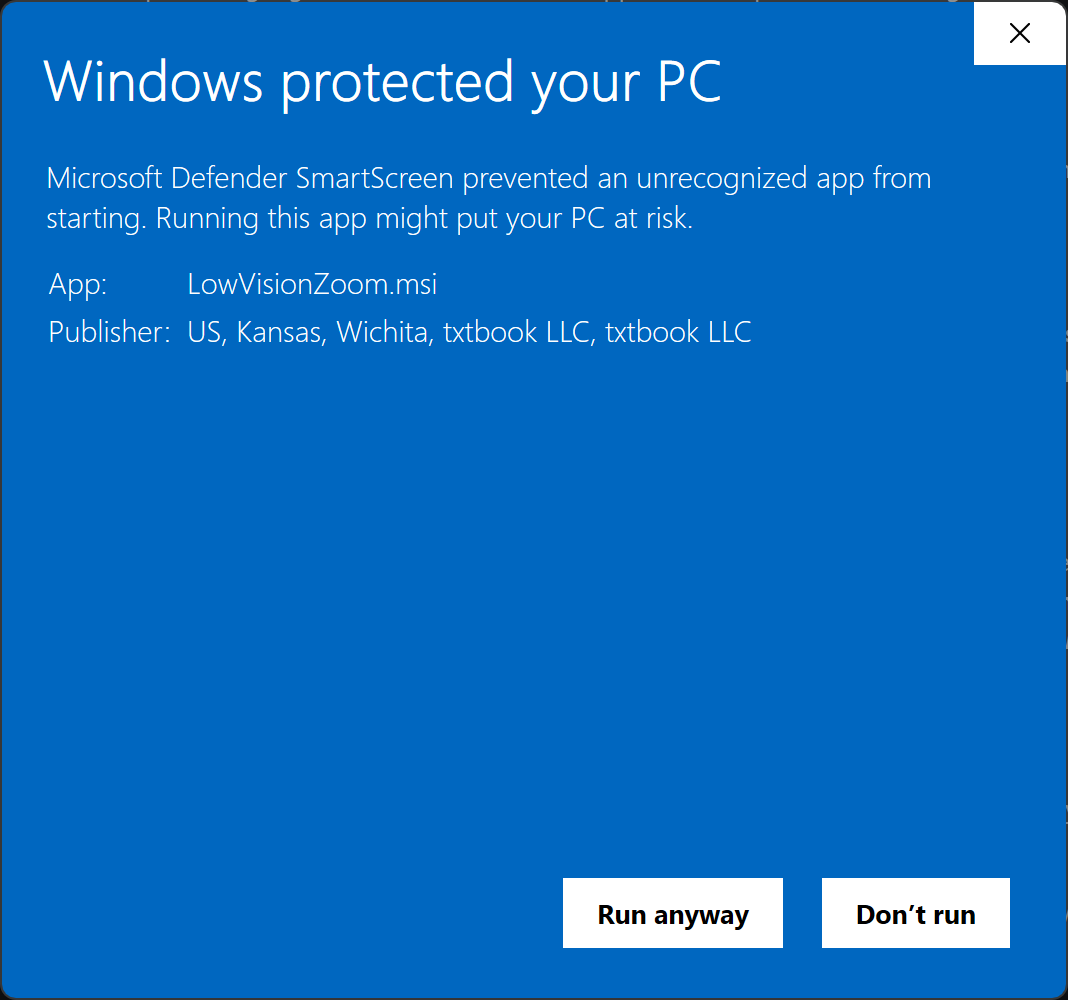
The first time you open the installer, Windows may show a full-screen blue “Windows protected your PC” message. This is normal and the app is safe. It happens because Low Vision Zoom is a brand-new app — Windows hasn’t seen it enough times yet to recognize it. The installer is digitally signed by txtbook LLC, our company. Prefer to skip this screen entirely? Install from the Microsoft Store instead — Store installs don’t show the SmartScreen warning.
To continue:
- Click More info on the blue screen.
- Check that the publisher line includes txtbook LLC.
- Click the Run anyway button that appears, and the installer opens as usual.
The warning fades on its own over the coming weeks as more people install the app, and you only need to do this once. It installs per-machine to Program Files, which is also what lets clicks land correctly while zoomed.
More questions — privacy, refunds, multiple licenses, how it compares to other magnifiers? See all frequently asked questions →
The best screen magnifier for Windows users with low vision.
7-day free trial · $9.99 one-time · no subscription
Low Vision Zoom is a screen magnifier for Windows 10 and 11. It costs $9.99 one time. It is available from the Microsoft Store or as a direct MSI download. It works offline and collects no data.